Note-Taking with Aria
This guide covers how to use Aria to generate clinical notes and how to customize note output using Note Memory.
Creating a Note
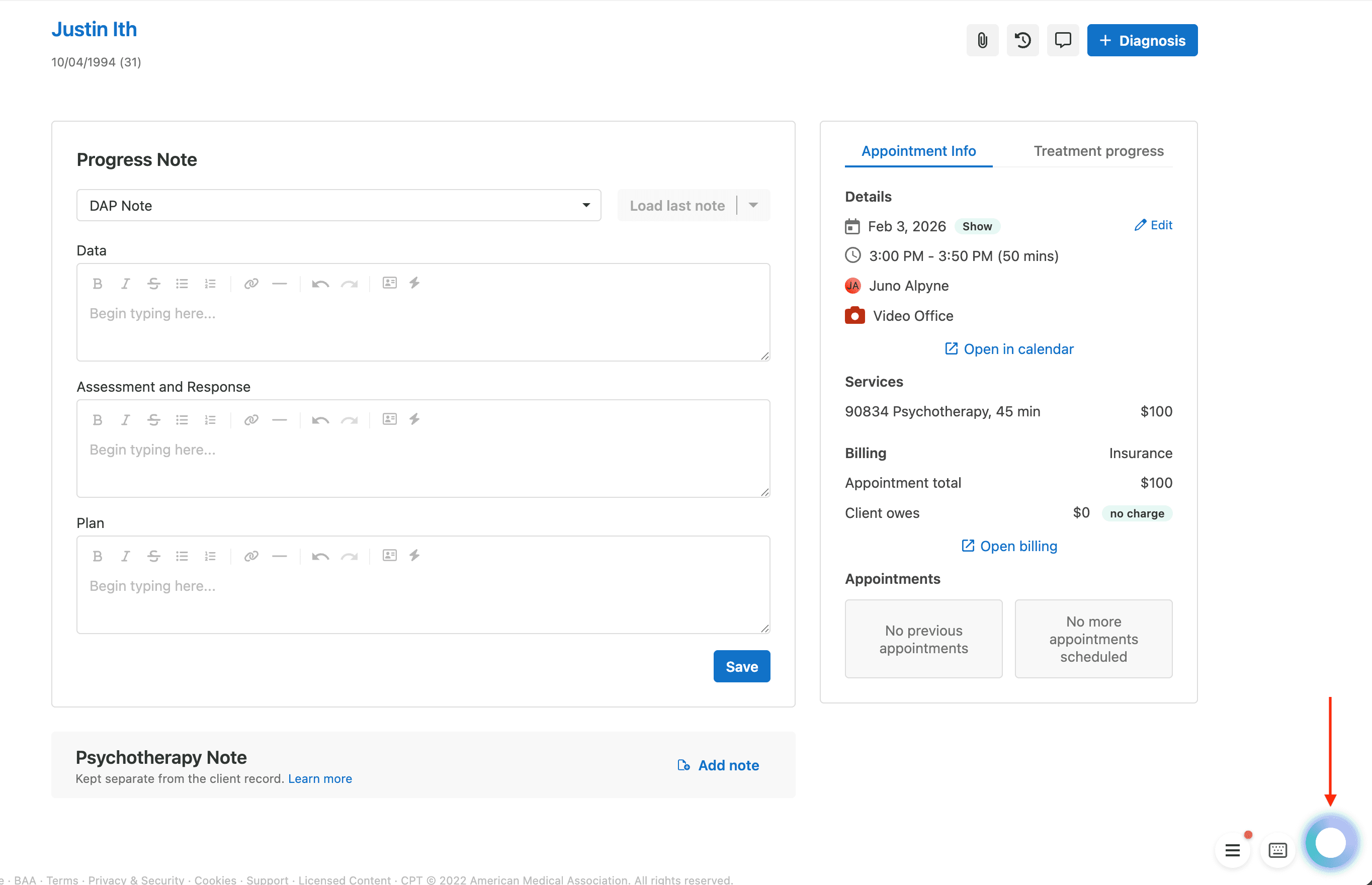
- Open the appointment page in your EHR (e.g., a client's appointment in SimplePractice).
- Select your note template from the EHR's dropdown (e.g., "SOAP Note" or "DAP Note"). Aria detects which format you've selected and generates the note accordingly.
- Click the Aria Ring to start recording. The ring pulses to indicate it's listening.
- Dictate your session observations. Speak naturally about what the client reported, what you observed, your clinical assessment, and the plan. Your transcript builds in real time.
- Click the Aria Ring again to stop recording.
- Aria fills in your note. Aria processes your dictation and writes structured content directly into the EHR's form fields:
- SOAP Notes: Subjective, Objective, Assessment, Plan
- DAP Notes: Data, Assessment, Plan
- Review, edit, and save using your EHR's own Save button.
How Note Format Is Detected
Aria reads the note template dropdown in your EHR to decide which format to generate:
- "DAP Note" selected: generates a DAP note
- Any other template (SOAP Note, Standard Progress Note, etc.): generates a SOAP note
You can also set a default note type in the Memory tab (see Note Memory below).
Editing an Existing Note
If a note already has content and you want Aria to revise or add to it:
- Keep the note page open with your existing content visible.
- Click the Aria Ring and dictate your additions or corrections.
- Aria reads the existing content from the form alongside your new dictation, so it revises the note rather than starting from scratch.
Supported Platforms
| Platform | Supported Note Types |
|---|---|
| SimplePractice | SOAP Notes, DAP Notes |
| TheraNest | SOAP Notes, DAP Notes, Treatment Plans |
| TherapyNotes | Progress Notes |
Aria detects the platform automatically based on the URL. When you're on a supported appointment or note page, the Aria Ring routes your dictation to the appropriate note generator with no extra configuration needed.
Note Memory
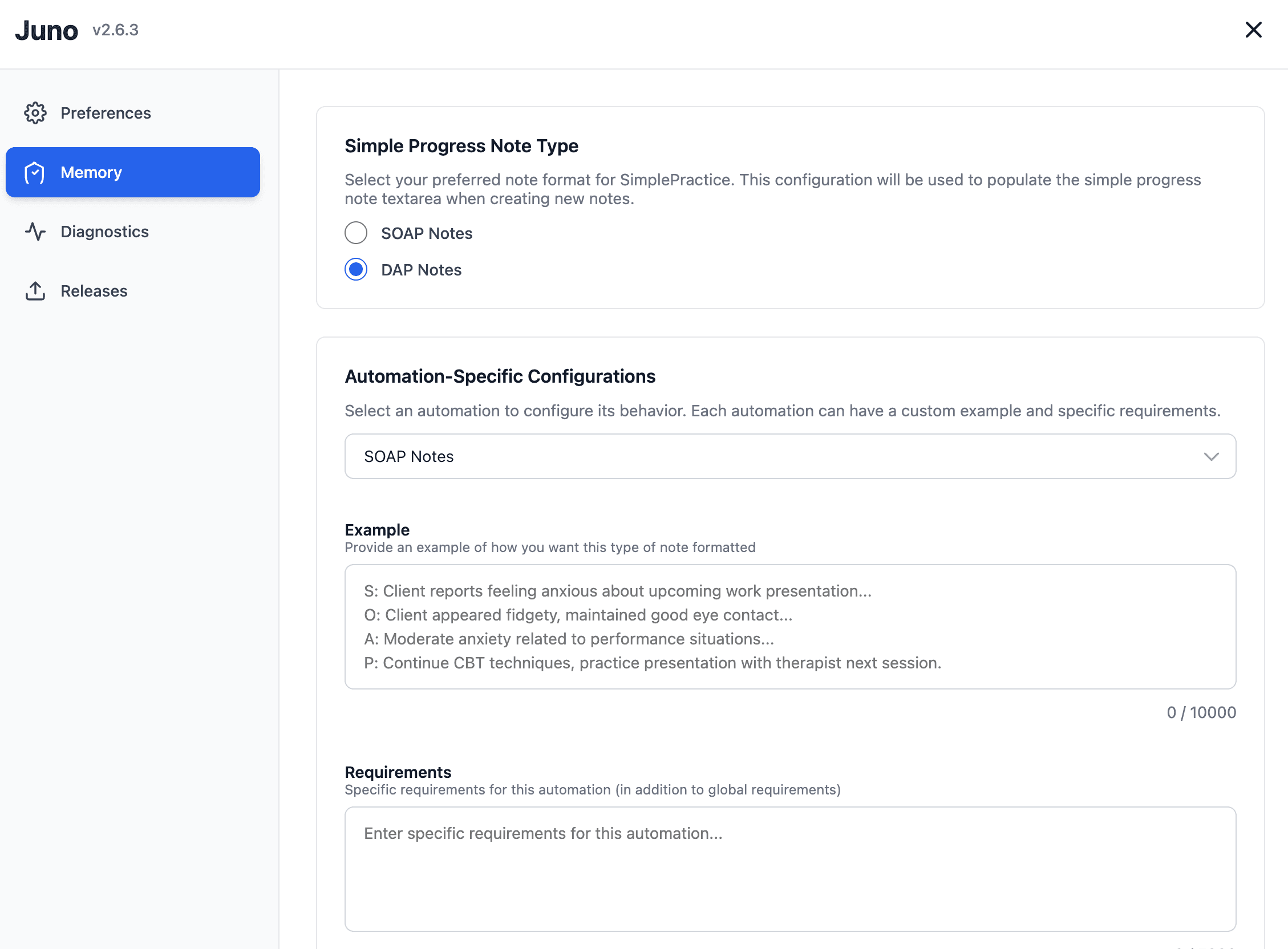
Note Memory lets you teach Aria how you write notes. You can provide example notes and specific requirements so Aria matches your preferred style, terminology, and formatting.
Access Note Memory from Settings > Memory (click the gear icon in the task inbox).
Setting Your Default Note Type
If you use SimplePractice, the Memory tab shows a toggle to choose your default note format:
- SOAP Notes: Subjective, Objective, Assessment, Plan
- DAP Notes: Data, Assessment, Plan
This setting is saved immediately when you select it.
Providing an Example Note
The most effective way to shape Aria's output is to provide a sample note in your own style.
- In the Memory tab, select the automation you want to configure from the dropdown (e.g., "SimplePractice - SOAP Notes").
- Paste or type an example note into the Example field (up to 10,000 characters).
- Click Save Configuration.
Aria uses this example as a style reference when generating notes, matching your formatting, section length, level of detail, and clinical language.
What makes a good example:
- A real note (with client details removed) that represents your typical style
- The right level of detail you expect in each section
- Your preferred clinical terminology and phrasing
Adding Requirements
Use the Requirements field to give Aria specific instructions that apply every time it generates a note for that automation. For example:
- "Always include DSM-5 diagnostic codes in the Assessment section"
- "Use person-first language throughout"
- "Keep each section to 2-3 sentences"
- "Include specific therapeutic interventions used in the Objective section"
- "Note any homework or exercises assigned in the Plan section"
Requirements can be up to 5,000 characters. Click Save Configuration to apply.
Per-Automation Configuration
Each EHR platform and note type has its own memory configuration. This means you can have different examples and requirements for:
- SimplePractice SOAP Notes
- SimplePractice DAP Notes
- TheraNest SOAP Notes
- TheraNest DAP Notes
- TheraNest Treatment Plans
- TherapyNotes Progress Notes
The dropdown in the Memory tab shows only the automations available for the EHR platform you're currently viewing.
Troubleshooting
No Audio Detected
If Aria shows a "blank audio" message after recording:
- Check that your microphone isn't muted at the system or hardware level.
- Verify the correct microphone is selected. Click the lock icon in Chrome's address bar and check the Microphone setting.
- Make sure Chrome has microphone permission for the current site.
- Check your internet connection. Speech recognition requires an active connection.
- Open Settings > Diagnostics to run a microphone and network test.
Note Not Filling In
- Confirm you're on the correct appointment or note page in your EHR.
- Verify that the note template dropdown is visible and a format is selected.
- Try refreshing the page and recording again.
Note Doesn't Match My Style
- Add an example note in the Memory tab that reflects your preferred style.
- Add requirements with specific instructions (e.g., section length, terminology, formatting).
- Make sure you've selected the correct automation in the Memory tab dropdown and clicked Save Configuration.